Obtenga la última versión del administrador de mods para su plataforma. Verifique la integridad antes de la instalación y utilice únicamente canales de distribución oficiales.
Última versión
Versión3.2.17
Reveladorebkr
cadena de dependenciaebkr-r2modman-3.2.17
LicenciaMIT (código abierto)
CategoríaHerramientas
Actualización automáticaYes, al cerrar la aplicación
Aspectos destacados de los últimos lanzamientos
Nuevo soporte para juegos, incluidos Crawlspace y Big Ambitions
Steam lanza correcciones en Linux y Flatpak a través de xdg-open
Alineación de la interfaz de usuario del perfil restaurada
Thunderstore actualizaciones de datos del ecosistema
Emisor de eventos de lanzamiento del juego y corrección de actualización RecursiveMelonLoader
Mejoras en el control giratorio de carga grande y selección múltiple del editor de configuración
Windows descargar
Tamaño aproximado del paquete: 126 MB. Descargue el zip Thunderstore, extraiga y ejecute r2modman Setup X.X.X.exe. Ejecútelo como administrador cuando se le solicite la instalación en todo el sistema.
Asegúrese de que se cumplan los requisitos del marco .NET para su versión Windows
Extraiga el archivo descargado a una carpeta que usted controle
Ejecute el instalador y elija el alcance por usuario o para todos los usuarios.
Inicie R2ModMan y seleccione su juego
Linux descargar
Tamaño aproximado AppImage: 158 MB. Las compilaciones específicas de la plataforma también incluyen paquetes deb, rpm, pacman y tar.gz en archivos de lanzamiento.
Marque el ejecutable AppImage en las propiedades del archivo
Ejecute AppImage o instale un paquete de distribución si lo prefiere
Para Proton en Steam, coloque un archivo .forceproton en el directorio del juego como solución temporal
How to Install R2ModMan?
Follow this Windows walkthrough after downloading the Thunderstore zip. Each step matches the official installer — version numbers in screenshots may differ slightly from the latest release.
01
Extract archive
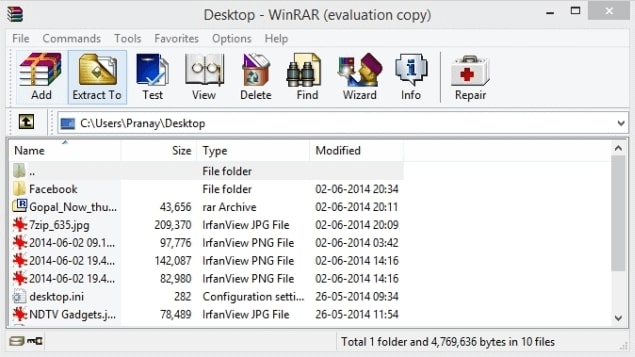
Obtener build the R2ModMan zip from an official source, open it in WinRAR or another archive tool, and click Extract To to unpack the files into a folder you control.
Step 1 · Extract archive
Click to enlarge
02
Run setup
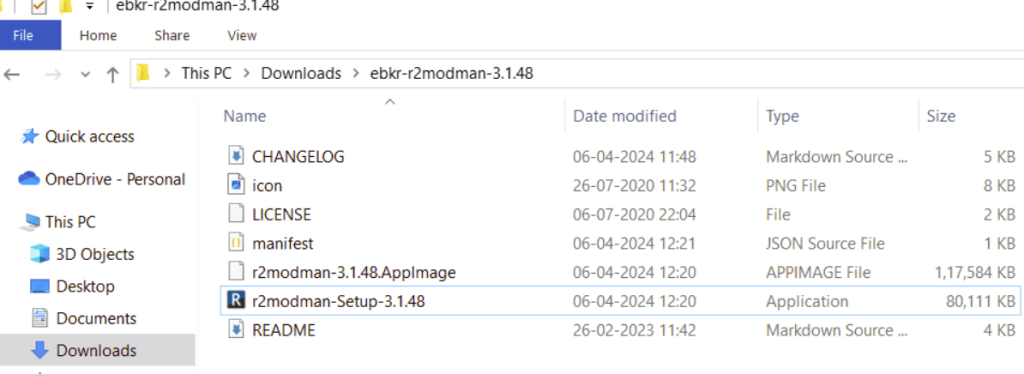
Open the extracted folder and double-click r2modman-Setup (the version number in the filename may differ). This launches the Windows installer.
Step 2 · Run setup
Click to enlarge
03
Installation scope
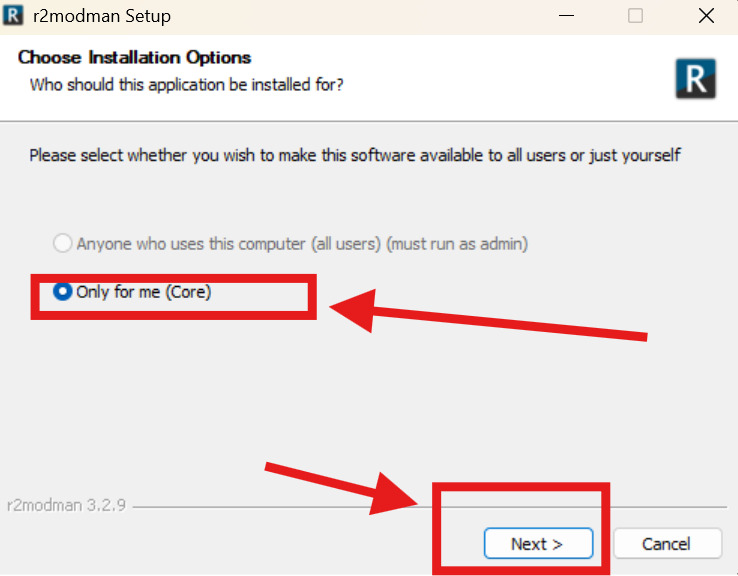
When asked who the app is for, select Only for me for a standard per-user install (recommended). Choose all-users only if you need a system-wide install and can run as administrator. Click Next.
Step 3 · Installation scope
Click to enlarge
04
Install location
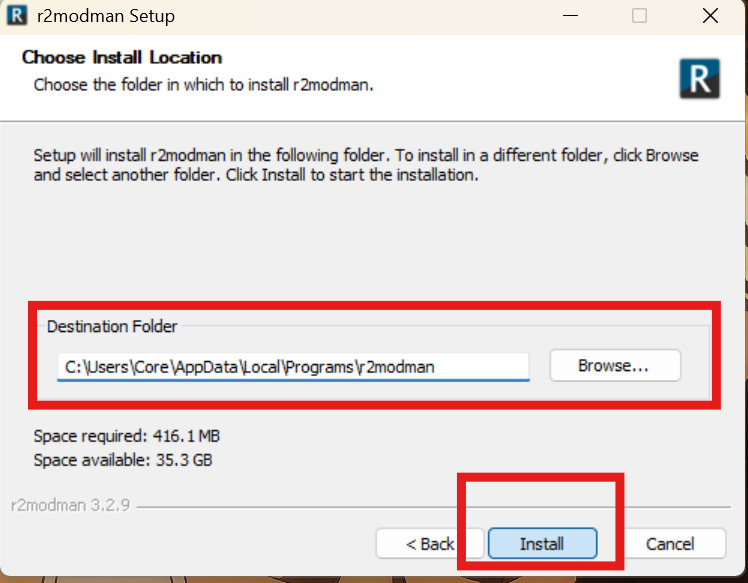
Review the destination folder — the default path under AppData\Local\Programs\r2modman works for most users. Use Browse to change it if needed, then click Install.
Step 4 · Install location
Click to enlarge
05
Finish setup
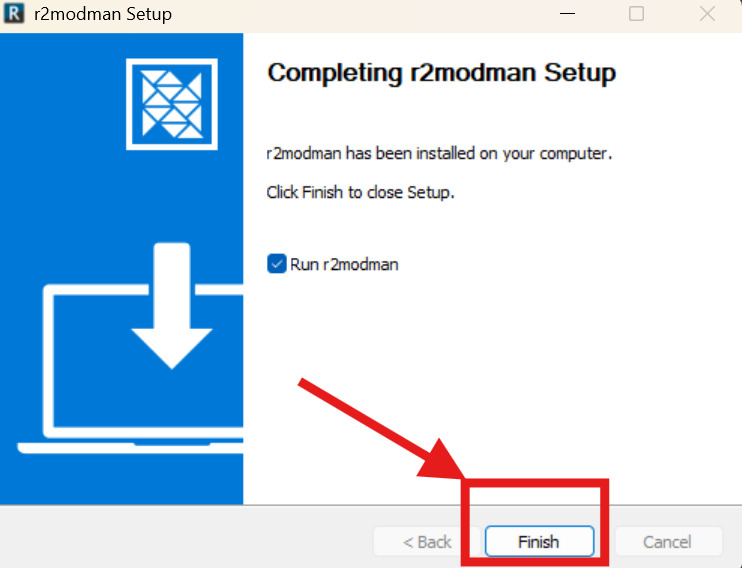
When setup completes, leave Run r2modman checked to open the app immediately, then click Finish. Select your game from the grid and create your first profile.
After installing the manager, pick your game from the grid, create a profile, and browse Thunderstore for mods. Risk of Rain 2, Valheim, Lethal Company, and dozens of other Unity titles are supported.
How to Update R2ModMan Mods?
Keeping mods current is straightforward. There are two ways to update mods inside the manager:
Method 1: One by One
✓ Open the profile that contains the mods you want to update.
✓ Click the Installed tab in the sidebar.
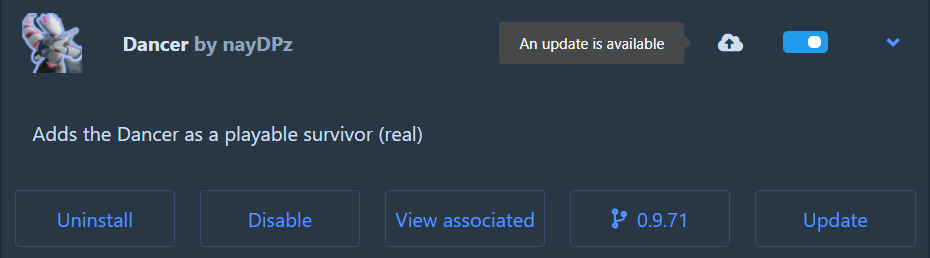
✓ Select a mod that shows the cloud update icon.
✓ Press Update on the mod card.
✓ Confirm Obtener build with dependencies when prompted.
You can also click the cloud icon on a mod card directly to update without opening full details — useful when updating one mod at a time after a game patch.
Method 1 · Update one mod
Single mod update · Click to enlarge
Method 2: All at Once
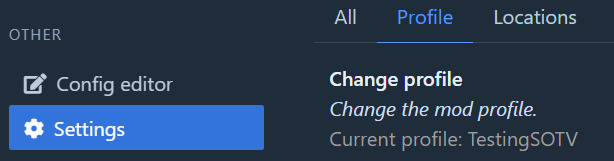
✓ Open the profile you want to update.
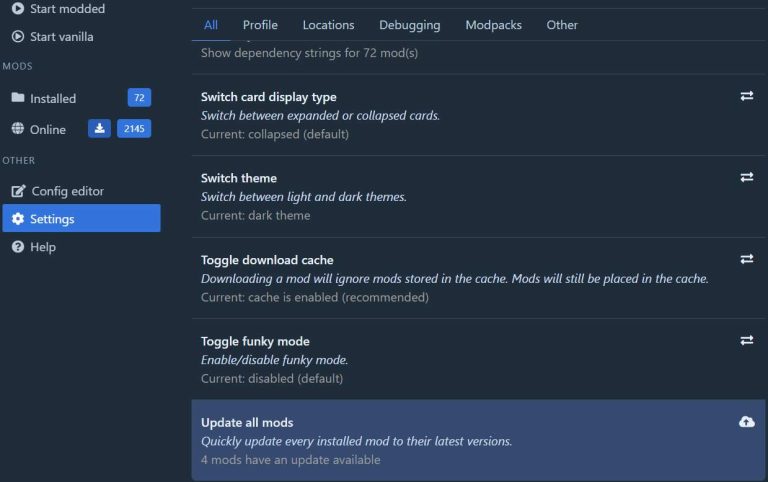
✓ Go to Settings in the sidebar.
✓ Open the All tab.
✓ Scroll down and click Update all mods.
✓ Confirm Update all to apply every available update.
Updating one by one is recommended when debugging crashes — you can see exactly which mod changed. If updates still fail, check our troubleshooting guide.
Method 2 · Update all mods
Bulk update · Click to enlarge
Quick start after install
✓ Inicie R2ModMan y seleccione su juego from the grid.
✓ Create or choose a profile for your mod list.
✓ Open the Online tab and install mods with dependencies.
✓ Click Start modded to launch the game with your profile.
For a full walkthrough with more screenshots, visit the Tutoriales page.
Getting started
First launch · Click to enlarge
Transparencia de fuente
R2ModMan es de código abierto. El paquete canónico está publicado el Thunderstore bajo ebkr/r2modman. El código fuente lo mantiene el mismo desarrollador en el repositorio r2modmanPlus. Este sitio web no aloja archivos de instalación; Los botones de descarga en esta página apuntarán a las URL oficiales elegidas cuando se configuren.
Sumas de verificación y firmas SHA
Cuando descargue desde las páginas de lanzamiento oficiales, compare el hash SHA-256 o SHA-512 publicado con su archivo local utilizando las herramientas de su sistema operativo. En Windows, utilice CertUtil. En Linux, utilice sha256sum. Los hashes coincidentes confirman que el archivo no fue modificado durante el tránsito.
Es posible que se proporcionen instaladores firmados en algunos canales de lanzamiento. Si hay un archivo de firma disponible, verifíquelo con la clave pública del desarrollador antes de ejecutar el ejecutable de instalación.
Falsos positivos antivirus
Los administradores de mods interactúan con directorios de juegos, descargan DLLs comunitarios y pueden usar instaladores que activan detecciones heurísticas. R2ModMan se usa ampliamente con millones de descargas de Thunderstore y la comunidad de código abierto no lo clasifica como malware.
Los falsos positivos son más comunes cuando se descargan desde espejos no oficiales. Si su antivirus pone la aplicación en cuarentena, restáurela solo después de verificar los hashes de una fuente oficial. Agregue una exclusión solo cuando haya confirmado la integridad del archivo.